The Centre for Innovation and Excellence in Learning supports students and faculty with the learning technologies available at VIU, especially our online course platform VIULearn. We created this helpful blog post and recorded the orientation so new and returning students can take in this information whenever is convenient & as many times as they’d like.
Note for Instructors:
Resources to share
Please direct your students to this blog post and other orientation resources! Here are a few to get started:
- This blog post – VIULearn Student Orientation & Other Learning Tools – Spring 2026
- Steps to register in the VIULearn Student Orientation course course inside VIULearn
- CIEL’s full collection of Student Support Tutorials
Direct orientation support
We may be able to support you and your students directly in class! If there is a specific time that you would like to invite a member of our team to join your class in a computer and deliver a brief orientation, or if you would like coaching so you feel more confident orienting your students to your own VIULearn course, please contact LearnSupport@viu.ca for next steps.
Orientation Video
What does CIEL (The Centre for Innovation and Excellence in Learning) support?
We support VIU students with learning technologies, including VIULearn, VIUTube, VIUBlogs (WordPress) and video conferencing in Microsoft Teams.
Contact CIEL by email (LearnSupport@viu.ca) or phone (1-250-740-6179) for support with these tools.
How do I access VIULearn, VIUTube, and VIUBlogs?
Step 1: Create your VIU Computer Account Password
You use your VIU Computer Account password to login VIULearn, VIUTube, VIUBlogs, and Microsoft Teams.
This page on the IT department’s website has steps to guide you through setting up your computer account password. If you have any difficulty with your computer account, contact the VIU IT Helpdesk:
- by email at StudentTechHelp@viu.ca
- through the Student Tech Help Chat on the IT website
- or call 1-250-740-6300 Monday to Friday, 8:00AM – 4:30PM
Step 2: Login
- Go to https://learn.viu.ca
- Click Go to VIULearn to access VIULearn or VIUTube / Click Go to VIUBlogs to access that tool
- For login credentials, use your
- Student Number or official “my.viu.ca” email address as your username
- VIU Computer Account password
- (VIUTube only) Once you are logged in to VIULearn, click VIUTube at the top of the page to access that tool
Here are our support pages with more detailed instructions for accessing each tool:
- Login to VIULearn
- Access VIUTube through VIULearn
- Login to VIUBlogs
How can I prepare to use learning technologies at VIU?
Register for the self-paced VIULearn Student Orientation 2025-2026 course in VIULearn
Your instructors may use VIULearn for course content and activities. This orientation course is self-paced, and will show you how to navigate VIULearn to view content, adjust your settings, & complete activities. Follow the steps on this page to register for the VIULearn Student Orientation 2025-2026 course.
Download the Microsoft Teams application
Your instructors may use Microsoft Teams for class meetings.
Whether you are a new or returning student, we recommend that you download the latest version of the Microsoft Teams app on your phone, computer and/or tablet, and check out the Microsoft Teams support pages.
Please download the app even if it already appears to be installed on your device! Some versions of Teams are only for personal use or may be otherwise out of date.
Download Microsoft Teams and Login:
- Create your VIU computer account password.
- The IT department’s VIU Computer Accounts support page has instructions.
- The IT department’s VIU Computer Accounts support page has instructions.
- Setup 2-Step Verification on your account. Here are some IT support pages with instructions and more information:
- Download the latest version of Microsoft Teams.
- Login using your official “my.viu.ca” email address and your VIU computer account password.
- VIU student email addresses use this format:
preferredname.lastname@my.viu.ca(e.g. Jane.Doe@my.viu.ca). If you are unsure what your VIU email address is, please check your personal inbox for an email with those details or contact the IT department.
- VIU student email addresses use this format:
Meetings in Microsoft Teams
Click here to learn how to join a Microsoft Teams meeting. You will most likely join by clicking a meeting link that your instructor has shared with you.
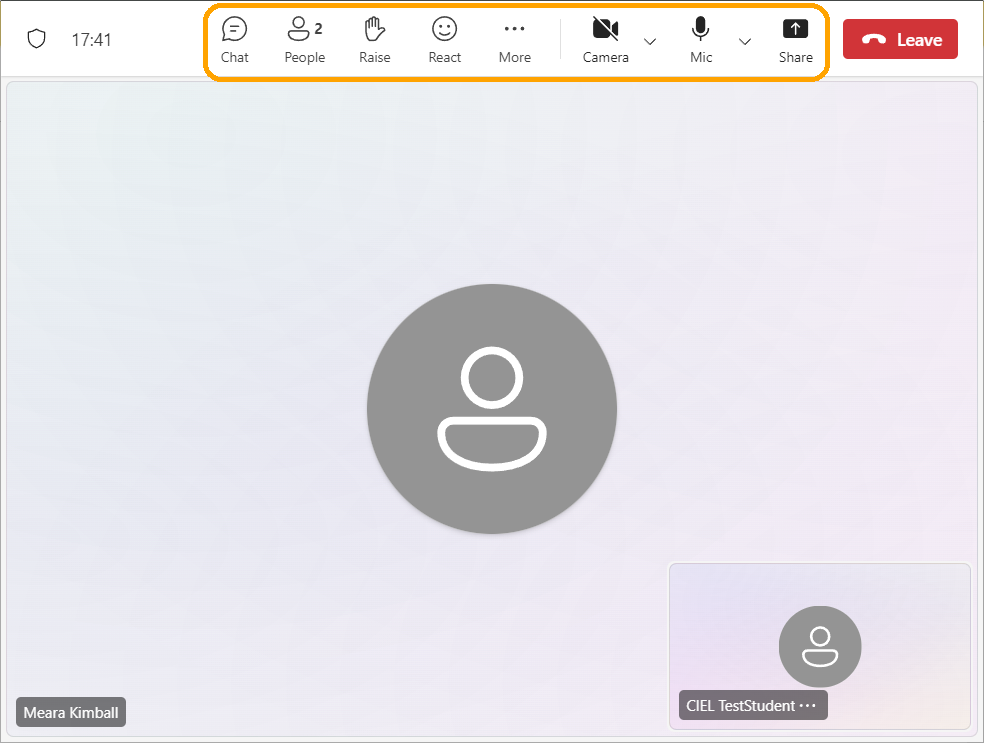
If you have used Zoom or other video conferencing tools in the past, the meeting controls available in Teams are very similar:
- Chat: Read and write messages, share files
- People: See meeting participants and their roles
- Raise: Ask for attention without interrupting the meeting
- React: Display a temporary emoji reaction
- More: Access other meeting tools and options (change the meeting view, turn on captions, etc)
- Camera/Mic: Click to toggle these devices on and off; the downward arrows open video and audio settings
- Share: Share screen for presentations, etc
How can I access academic support or contact other support departments?
Visit VIU’s Learning Matters site to access learning resources and to find contact information for other support areas at VIU.
Why do I see information about VIU policies instead of my courses when I login to VIULearn?
You will see a terms and conditions page when you login to VIULearn for the first time each academic year.
You must accept the terms and conditions to access your My Home page & your VIULearn courses. Once you accept them, you will not see this page again until the policies change or a new semester has started.
Watch this video for more information:
Useful links & resources:
- Contact CIEL for support with VIULearn, VIUTube, and VIUBlogs.
Open Monday-Friday 9am-4pm barring stat holidays & other university closure dates.- Email: LearnSupport@viu.ca
- Phone: 250-740-6179
- CIEL Student Support Resources for VIULearn, VIUTube, and VIUBlogs
- Contact the IT department for support with other VIU technologies, including your VIU computer account & email.
Open Monday-Friday 8am-4:30pm barring stat holidays & other university closure dates.- Email: StudentTechHelp@viu.ca
- Phone: 250-740-6300
- Student Tech Help Chat: on their website
- Create/reset your student computer account password
- Access your VIU email
- Access VIULearn, VIUTube, and VIUBlogs
- Download the Microsoft Teams app
- Microsoft Teams support pages
- Direct link to VIUBlogs